Know-how directly from the Microsoft 365 mail merge experts
How to Do a Mail Merge in Outlook
Mail merge in Outlook lets you send hundreds of personalised emails individually, each addressed to the right person with the right data, without manually writing a single one. This guide covers every method: the classic Word approach, what changed in New Outlook, and a faster native add-in that works everywhere.
Need mail merge in New Outlook?
The classic Word method hands messages to Outlook through MAPI, which New Outlook lacks, so it fails silently. SecureMailMerge works natively: Windows, Mac, Web, New Outlook.
What is a mail merge in Outlook?
A mail merge sends individual, personalised emails to a list of
recipients directly from your Outlook inbox. Instead of a BCC
blast or a manual copy-paste job, mail merge replaces placeholder
tokens, like {{FirstName}} or {{Company}}, with real values from a spreadsheet and delivers each message
as if it were written one-to-one.
Common uses:
- Personalised invoices with individual amounts and numbers
- Newsletters where each subscriber sees their own name
- Sales outreach with company-specific opening lines
- HR communications to employees with individual details
- Event invitations with seat numbers or personal links
The 3 ways to mail merge in Outlook
There are three distinct approaches, with very different capabilities:
| Feature | Word + Classic Outlook | New Outlook / Web | SecureMailMerge Add-in |
|---|---|---|---|
| Setup time | 15-20 min | — | <2 min |
| Works in Classic Outlook | ✓ | — | ✓ |
| Works in New Outlook | ✗ | Basic built-in merge only | ✓ |
| Works on Mac | Limited (via Outlook for Mac, no preview) | — | ✓ |
| Works in Outlook Web | ✗ | ✗ | ✓ |
| Individual attachments | ✗ | ✗ | ✓ |
| Sent to a third-party server | No (via Outlook) | No | No (via your own mailbox) |
How to mail merge in Classic Outlook with Word & Excel
This is the built-in method included with Microsoft 365. It requires Classic Outlook (the desktop app, not New Outlook), Word, and an Excel spreadsheet.
Step 1: Set up your Excel spreadsheet
Your spreadsheet needs at least one column with email addresses. Name it To or Email. Add additional columns for each piece of personalisation data you want:
- FirstName, LastName
- Company
- InvoiceNumber, Amount
- Any other field you want to insert into the email
Tip: Avoid spaces in column headers.
FirstName works better than First Name when
inserting merge fields in Word.
Step 2: Open Word and choose E-mail Messages
- Open a new blank document in Word.
- Click the Mailings tab in the ribbon.
- Click Start Mail Merge.
- Select E-mail Messages.
Step 3: Connect your Excel data source
- Click Select Recipients in the Mailings ribbon.
- Choose Use an Existing List.
- Navigate to your Excel file and open it.
- Select the worksheet that contains your data and click OK.
Step 4: Write your email and insert merge fields
Write the email body in the Word document. When you want to insert a personalised value, place your cursor at that point and click Insert Merge Field in the ribbon. Choose the column name from the dropdown.
Word inserts a field like «FirstName». Example:
"Dear «FirstName»," or "Your invoice «InvoiceNumber» for
«Amount» is attached."
Step 5: Preview and verify
Click Preview Results. The field codes are replaced with real data from your spreadsheet. Use the arrow buttons to scroll through recipients and confirm the merge looks correct.
Step 6: Send via Outlook
- Click Finish & Merge.
- Select Send Email Messages.
- In the To field, choose the column containing email addresses.
- Enter a subject line in the Subject Line field.
- Choose HTML (recommended) or Plain Text format, then click OK.
Word hands the individual messages to Outlook, which sends them one by one from your mailbox.
Mail merge in New Outlook: what changed and what works
The Word method does not work in New Outlook. Its final step, "Send Email Messages", hands each message to Outlook through MAPI, an interface only Classic Outlook for Windows provides. With Classic still installed, Word hands off to it and the messages queue in its Outbox. With New Outlook alone, the merge fails silently: Word reports success and nothing is sent. The same applies to Outlook on the Web.
New Outlook does have its own Mail merge command under the Options tab, but it sends the same message to every recipient and cannot personalize from a spreadsheet. So your options are to switch back to Classic for a one-off, or to use an add-in that runs inside New Outlook.
Full guide: mail merge in New Outlook
The easier way: mail merge directly inside Outlook
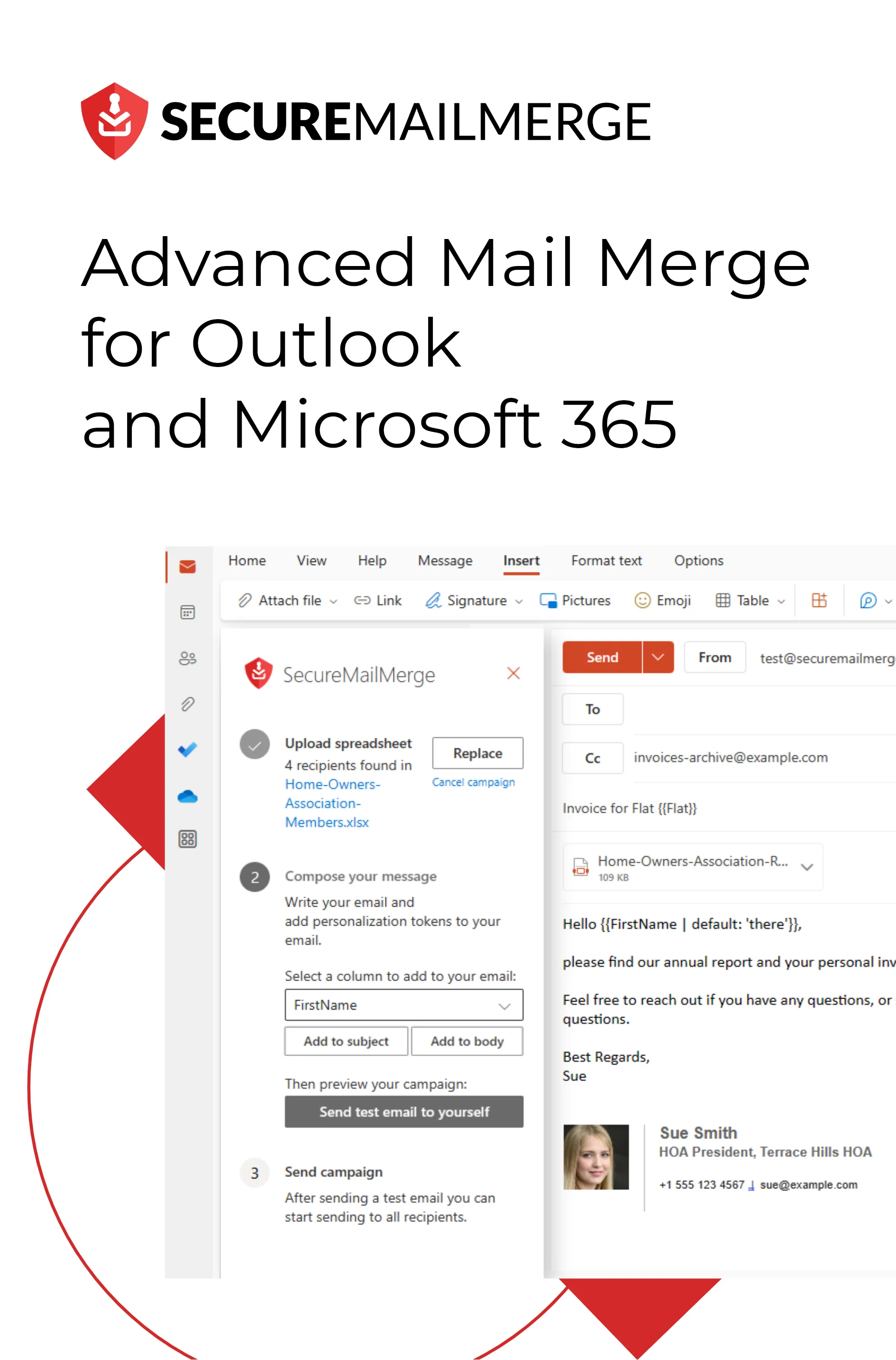
SecureMailMerge is a native Microsoft add-in published in Microsoft AppSource that adds a full mail merge campaign manager directly into your Outlook compose window. It works in Classic Outlook, New Outlook, Outlook for Mac, and Outlook on the Web. Your spreadsheet and message content are processed on your computer inside Outlook, and the emails are sent through your own Microsoft 365 mailbox, like any email you write yourself.
How to get started
- Install the add-in. In Outlook, click Apps (or Get Add-ins), search for SecureMailMerge, and click Add. It's free. Some organizations require a Microsoft 365 administrator to approve add-ins first; see Need Admin Approval.
- Open a new email. You'll see the Campaign Manager icon in the toolbar or Apps menu of the compose window.
- Upload your spreadsheet. Click the icon, then select "Use Spreadsheet." Upload your Excel or CSV file.
- Write and personalise your email. Use the dropdown
to insert tokens like
{{FirstName}}and{{Company}}directly into the subject and body. - Send a test email. Click "Send Test Email." Outlook sends you a copy using data from the first row, so verify everything looks right.
- Send to everyone. Click "Start Sending Campaign." Outlook delivers individual emails to every row in your spreadsheet.
Free version with every feature and a promotional footer
Works in all versions of Outlook. Listed on Microsoft AppSource. Your spreadsheet stays on your computer and the mail leaves from your own mailbox.
Attachments, CC/BCC and advanced personalization
The classic Word method cannot add file attachments; its "send as attachment" option only sends the merged Word document itself. SecureMailMerge supports attachments for every recipient and even individual attachments (a different file per person) by reading filenames from your spreadsheet. Full details on the mail merge attachments feature page.
Individual attachments
- Add an Attachments column to your spreadsheet.
-
For each row, enter the filename (e.g.
invoice_42.pdf). Separate multiple files with a semicolon. - When you upload the spreadsheet, SecureMailMerge will prompt you to upload the referenced files.
Full walkthrough: How to send a mail merge with individual attachments
CC and BCC
Add a CC or BCC column to your spreadsheet. SecureMailMerge will pick it up automatically and copy the right addresses on each email.
Conditional content
You can use {% if Column == "value" %} conditions in
your email body to show or hide blocks of text depending on the
recipient's data. See the conditions guide for syntax.
Related guides:
- How to mail merge from Excel to Word
- How to do a mail merge (beginner guide)
- Mail merge from Excel: spreadsheet setup guide
- How to send a mass email in Outlook
- Outlook email sending limits explained
Common problems and fixes
Mail merge not sending in Classic Outlook
Check that Classic Outlook (not New Outlook) is set as your system default email client. On Windows 11: Settings → Apps → Default Apps → search "Outlook" → verify it is set as the default for email.
Merge fields not replacing with data
Column names in your spreadsheet must exactly match the field
names you inserted in Word. Capitalisation and spaces both matter:
FirstName ≠ Firstname ≠ First Name.
Receiving duplicate emails
Check your spreadsheet for duplicate rows. Also check Outlook's Outbox for queued messages from a failed previous send, then delete any stuck messages before running the merge again.
"Not enough memory or disk space" error in Word
This is a known Word limitation when the spreadsheet contains many rows. Split your send into batches of 500 or fewer, or switch to the SecureMailMerge add-in, which handles large lists without this restriction.
Emails landing in spam
Sending too many emails too quickly can trigger spam filters. See our guide on how to avoid emails going into spam.
Frequently asked questions
Does mail merge work in New Outlook?
The classic Word-based mail merge does not work in New Outlook or Outlook on the Web, because it depends on MAPI, which New Outlook does not implement. New Outlook has its own Mail merge command, but it sends the same message to every recipient and cannot personalize from a spreadsheet. The SecureMailMerge add-in works in all Outlook versions, including New Outlook. Full guide: mail merge in New Outlook.
Can you mail merge with attachments in Outlook?
Yes, with an add-in. The Word method cannot add file attachments (its "send as attachment" format only sends the merged document itself). The SecureMailMerge add-in supports shared and per-recipient attachments: add an "Attachments" column to your spreadsheet and list each filename. Full guide: mail merge with attachments in Outlook.
How many emails can I send with mail merge?
Microsoft 365 Business and Enterprise accounts can send up to 10,000 recipients per rolling 24 hours by default, counted as recipients rather than messages, with 500 recipients per message. These are Microsoft defaults, not guaranteed capacity, and administrators can set lower limits. SecureMailMerge adds no limits of its own. Personal Outlook.com accounts get less: up to 5,000 recipients per day with a Microsoft 365 subscription, and significantly less on free accounts. Full numbers and pacing tips: Outlook email sending limits.
Is mail merge free in Outlook?
The Word-based method is free with any Microsoft 365 subscription. The free version of SecureMailMerge includes every feature and adds a short promotional footer to each email. A license removes the footer; see the pricing page.
How do I mail merge in Outlook without Word?
Install the SecureMailMerge add-in from Microsoft AppSource. It runs entirely inside Outlook's compose window, no Word required, and works on Windows, Mac, and the Web. Some organizations require a Microsoft 365 administrator to approve add-ins first; see Need Admin Approval.
What is the best mail merge tool for Outlook?
SecureMailMerge is a native mail merge add-in for Outlook, rated 4.9 on Microsoft AppSource. Unlike browser-based alternatives, it runs inside Outlook: your spreadsheet and message content are processed on your computer and the emails are sent through your own Microsoft 365 mailbox. See how it compares on the comparison page.
Hat dir dieser Artikel gefallen?
Wir haben eine ganze Bibliothek nützlicher Artikel für dich zum Lesen.
Zeig mir die Bibliothek der Outlook-Artikel.