Know-how directly from the Microsoft 365 mail merge experts
How to Do a Mail Merge in Outlook
Mail merge in Outlook lets you send hundreds of personalised emails individually — each addressed to the right person with the right data — without manually writing a single one. This guide covers every method: the classic Word approach, what changed in New Outlook, and a faster native add-in that works everywhere.
Need mail merge in New Outlook?
The classic Word method is broken in New Outlook. SecureMailMerge works natively — Windows, Mac, Web, New Outlook.
What is a mail merge in Outlook?
A mail merge sends individual, personalised emails to a list of
recipients directly from your Outlook inbox. Instead of a BCC
blast or a manual copy-paste job, mail merge replaces placeholder
tokens — like {{FirstName}} or {{Company}} — with real values from a spreadsheet and delivers each message
as if it were written one-to-one.
Common uses:
- Personalised invoices with individual amounts and numbers
- Newsletters where each subscriber sees their own name
- Sales outreach with company-specific opening lines
- HR communications to employees with individual details
- Event invitations with seat numbers or personal links
The 3 ways to mail merge in Outlook
There are three distinct approaches, with very different capabilities:
| Feature | Word + Classic Outlook | New Outlook / Web | SecureMailMerge Add-in |
|---|---|---|---|
| Setup time | 15–20 min | — | <2 min |
| Works in Classic Outlook | ✓ | — | ✓ |
| Works in New Outlook | ✗ | ✗ | ✓ |
| Works on Mac | Limited | — | ✓ |
| Works in Outlook Web | ✗ | ✗ | ✓ |
| Individual attachments | ✗ | ✗ | ✓ |
| Open / click tracking | ✗ | ✗ | ✓ |
| Data leaves your computer | Via Outlook | — | ✗ (stays local) |
How to mail merge in Classic Outlook with Word & Excel
This is the built-in method included with Microsoft 365. It requires Classic Outlook (the desktop app, not New Outlook), Word, and an Excel spreadsheet.
Step 1 — Set up your Excel spreadsheet
Your spreadsheet needs at least one column with email addresses. Name it To or Email. Add additional columns for each piece of personalisation data you want:
- FirstName, LastName
- Company
- InvoiceNumber, Amount
- Any other field you want to insert into the email
Tip: Avoid spaces in column headers.
FirstName works better than First Name when
inserting merge fields in Word.
Step 2 — Open Word and choose E-mail Messages
- Open a new blank document in Word.
- Click the Mailings tab in the ribbon.
- Click Start Mail Merge.
- Select E-mail Messages.
Step 3 — Connect your Excel data source
- Click Select Recipients in the Mailings ribbon.
- Choose Use an Existing List.
- Navigate to your Excel file and open it.
- Select the worksheet that contains your data and click OK.
Step 4 — Write your email and insert merge fields
Write the email body in the Word document. When you want to insert a personalised value, place your cursor at that point and click Insert Merge Field in the ribbon. Choose the column name from the dropdown.
Word inserts a field like «FirstName». Example:
"Dear «FirstName»," or "Your invoice «InvoiceNumber» for
«Amount» is attached."
Step 5 — Preview and verify
Click Preview Results. The field codes are replaced with real data from your spreadsheet. Use the arrow buttons to scroll through recipients and confirm the merge looks correct.
Step 6 — Send via Outlook
- Click Finish & Merge.
- Select Send Email Messages.
- In the To field, choose the column containing email addresses.
- Enter a subject line in the Subject Line field.
- Choose HTML (recommended) or Plain Text format, then click OK.
Word hands the individual messages to Outlook, which sends them one by one from your mailbox.
Mail merge in New Outlook — what changed and what works
If you recently switched to New Outlook (the redesigned Windows app), or if you use Outlook on the Web at outlook.live.com or outlook.office.com, you have almost certainly discovered that the classic mail merge process no longer works.
Microsoft removed Mail Merge via Outlook from New Outlook. The Mailings tab in Word still exists, but the final step — "Send Email Messages" — requires Classic Outlook set as the system default. New Outlook and Outlook on the Web are not compatible with this workflow.
This is why "mail merge new outlook" is one of the fastest-growing search terms among Outlook users — and why Reddit threads and Microsoft TechCommunity posts about this specific problem now appear in the top Google results.
Your options in New Outlook
- Switch to Classic Outlook temporarily. Both versions can be installed side by side on Windows. Run the Word merge from Classic, then switch back.
- Use the SecureMailMerge add-in. It runs natively inside New Outlook and does not depend on the Word mail merge workflow at all.
The easier way: mail merge directly inside Outlook
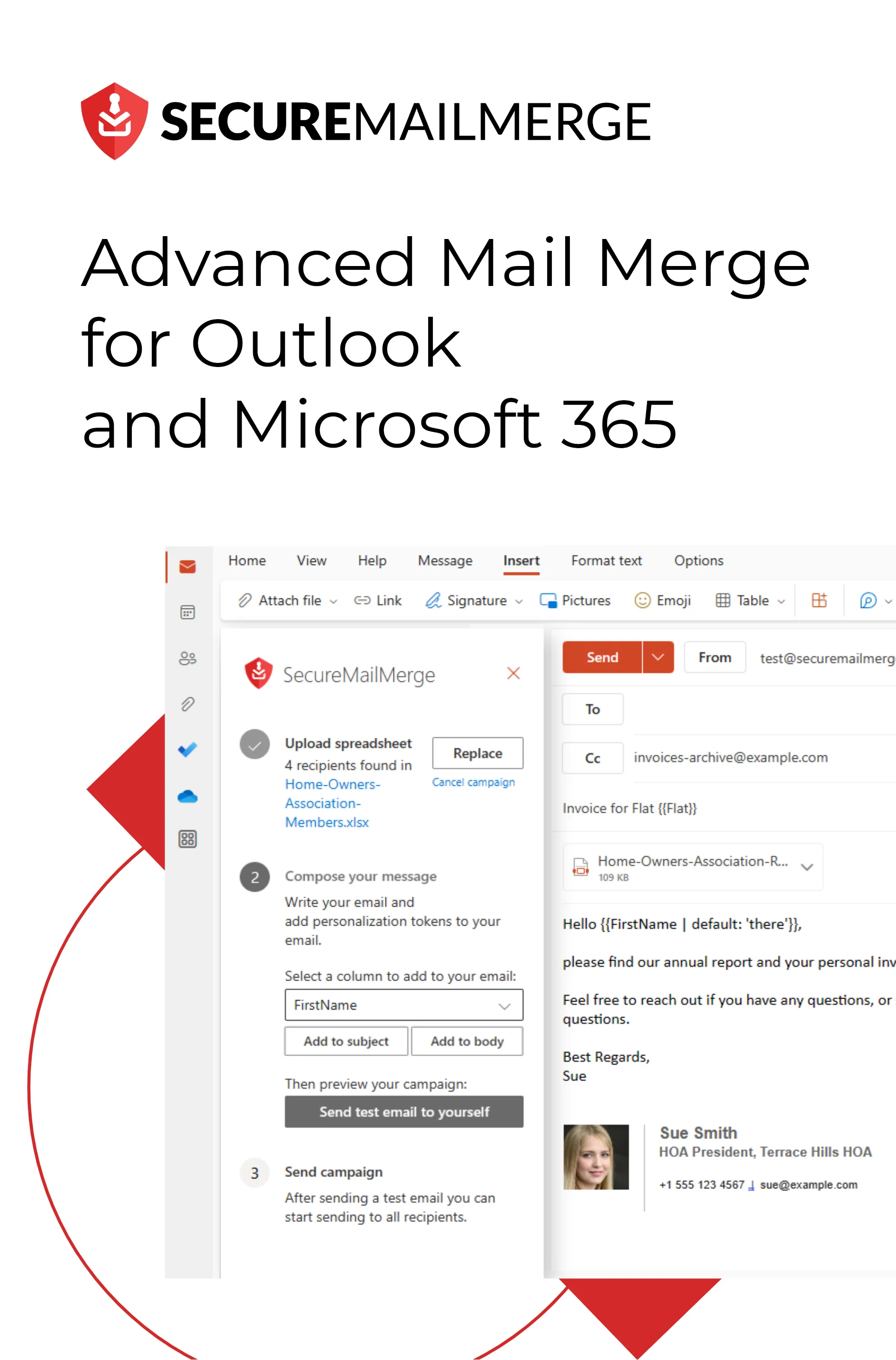
SecureMailMerge is a native Microsoft add-in published in Microsoft AppSource that adds a full mail merge campaign manager directly into your Outlook compose window. It works in Classic Outlook, New Outlook, Outlook for Mac, and Outlook on the Web — and your spreadsheet data is processed entirely on your own device. Nothing is sent to any external server.
How to get started
- Install the add-in. In Outlook, click Apps (or Get Add-ins), search for SecureMailMerge, and click Add. It's free.
- Open a new email. You'll see the Campaign Manager icon in the toolbar or Apps menu of the compose window.
- Upload your spreadsheet. Click the icon, then select "Use Spreadsheet." Upload your Excel or CSV file.
- Write and personalise your email. Use the dropdown
to insert tokens like
{{FirstName}}and{{Company}}directly into the subject and body. - Send a test email. Click "Send Test Email." Outlook sends you a copy using data from the first row — verify everything looks right.
- Send to everyone. Click "Start Sending Campaign." Outlook delivers individual emails to every row in your spreadsheet.
Free for up to 50 recipients per campaign
Works in all versions of Outlook. Approved by Microsoft. Processed locally — your data never leaves Outlook.
Attachments, CC/BCC and advanced personalization
The classic Word method sends the same attachment (if any) to every recipient. SecureMailMerge supports individual attachments — a different file per person — by reading filenames from your spreadsheet.
Individual attachments
- Add an Attachments column to your spreadsheet.
-
For each row, enter the filename (e.g.
invoice_42.pdf). Separate multiple files with a semicolon. - When you upload the spreadsheet, SecureMailMerge will prompt you to upload the referenced files.
Full walkthrough: How to send a mail merge with individual attachments
CC and BCC
Add a CC or BCC column to your spreadsheet. SecureMailMerge will pick it up automatically and copy the right addresses on each email.
Conditional content
You can use {{IF column = value}} conditions in your
email body to show or hide blocks of text depending on the recipient's
data. See the conditions guide for syntax.
Related guides:
- How to mail merge from Excel to Word
- How to do a mail merge (beginner guide)
- Mail merge from Excel: spreadsheet setup guide
Common problems and fixes
Mail merge not sending in Classic Outlook
Check that Classic Outlook (not New Outlook) is set as your system default email client. On Windows 11: Settings → Apps → Default Apps → search "Outlook" → verify it is set as the default for email.
Merge fields not replacing with data
Column names in your spreadsheet must exactly match the field
names you inserted in Word. Capitalisation and spaces both matter:
FirstName ≠ Firstname ≠ First Name.
Receiving duplicate emails
Check your spreadsheet for duplicate rows. Also check Outlook's Outbox for queued messages from a failed previous send — delete any stuck messages before running the merge again.
"Not enough memory or disk space" error in Word
This is a known Word limitation when the spreadsheet contains many rows. Split your send into batches of 500 or fewer, or switch to the SecureMailMerge add-in, which handles large lists without this restriction.
Emails landing in spam
Sending too many emails too quickly can trigger spam filters. See our guide on how to avoid emails going into spam.
Frequently asked questions
Does mail merge work in New Outlook?
The classic Word-based mail merge does not work in New Outlook or Outlook on the Web. Microsoft removed the "Finish & Merge → Send Email Messages" workflow from New Outlook. The SecureMailMerge add-in works in all Outlook versions, including New Outlook.
Can you mail merge with attachments in Outlook?
Yes. The Word method can attach a single file to every message, but it does not support individual attachments per recipient. The SecureMailMerge add-in supports per-recipient attachments: add an "Attachments" column to your spreadsheet and list each filename. Full guide: mail merge with individual attachments.
How many emails can I send with mail merge?
Microsoft 365 Business and Enterprise accounts can send up to 10,000 recipients per day. Microsoft 365 Personal / Home accounts have a lower limit (typically 300 per day). SecureMailMerge shows a warning before you hit the limit.
Is mail merge free in Outlook?
The Word-based method is free with any Microsoft 365 subscription. SecureMailMerge is free for up to 50 recipients per campaign. For larger campaigns, see the pricing page.
How do I mail merge in Outlook without Word?
Install the SecureMailMerge add-in from Microsoft AppSource. It runs entirely inside Outlook's compose window — no Word required — and works on Windows, Mac, and the Web.
What is the best mail merge tool for Outlook?
SecureMailMerge is the highest-rated native mail merge add-in for Outlook on Microsoft AppSource. Unlike browser-based alternatives, it runs inside Outlook and keeps your data local. See how it compares on the comparison page.
Hat dir dieser Artikel gefallen?
Wir haben eine ganze Bibliothek mit nützlichen Artikeln für dich zum Lesen.
Zeig mir die Bibliothek der Outlook-Artikel.